Everything the app does, all in one place. It's long, because Albumer does a lot of stuff. If you came here for one specific thing, scroll to the bottom, grab the how-to that covers it, and get on with your day.
Everyone else: bring a sandwich.
Getting in
Make an account
You need an account. There's no wandering around the store without one, sorry.
- Open Albumer. The sign-in screen shows up.
- Tap Sign Up.
- Type your email and a password, then confirm it.
- Or tap Google or Apple and skip all that.
Email and password is the only one that also works on our account-deletion page, so if you're the sort of person who likes an exit route, use that. Google is one tap and no password to forget. Apple will hand you a Hide My Email address, which is great if you don't trust us yet. That's fine. We'll grow on you.
You forgot your password
- On the sign-in screen tap Forgot your password?
- Type the email on the account, and we email you a code.
- Type the code and your new password, and you're back in.
Can't be bothered with passwords at all? Tap Email me a code instead and sign in with a code every time.
This only works if you signed up with an email. If you used Google or Apple, there's no Albumer password to reset. Go yell at Google.
Home
The first thing you see when you get in. Hey, {your name} up top, and a tile for everything Albumer does: Albums, Games, Events, Widget, Print, Cast to TV, Frames, Contacts and Favorites. Notifications and your Profile are on the bar at the bottom.
Albums
Making one
- Tap Albums, then Create an album at the bottom of the screen, or the + on the bottom bar.
- Give it a name. That's the only bit we insist on.
- Add a description if you're feeling thorough.
- Tap create. It opens straight away.
Name it something you'll recognize at 2am. "Album 1" will haunt you.
Finding one later
The Albums screen is where everything lives.
- Type in the search box to filter by name.
- Use the chips to flip between All, My Albums, Shared with Me, Puzzles and Favorites.
- Tap sort and pick: newest, oldest, A to Z, Z to A, most photos, recently added to, or Custom, which lets you drag your albums into any order you like.
- Tap the grid/list toggle, or pinch to make the tiles bigger or smaller.
- Tap the star on an album to keep it at the top.
Memories sits at the top of this screen: photos you took around this date in years gone by.
Your sort, filter and layout stick between launches.
Inside an album
The owner decides what members can do. Open the album's menu and choose What members can do to turn adding photos, likes, comments and voice notes on or off for everyone else.
By default, anyone in the album can look at the photos and videos, add their own, comment, like, leave a voice note in the Voice Guestbook, write in the Journal, see who else is in there, and save the whole lot to their own phone.
The owner, and any Admins the owner picks, can make and arrange folders, set the cover photo, invite and remove people, and open the QR code. Only the owner can rename the album, cast it to a TV, hook up a photo frame, make Admins, or delete the album.
Folders
Albums inside albums, basically.
Say you've got a week in Spain. That's one album, and about four hundred photos. Make folders for each day and suddenly nobody has to scroll past the airport to find the good beach.
- Open an album and find the Folders row.
- Tap New, name it. (Owners and Admins only.)
- Open it and add photos in there.
- Tap Arrange to drag your folders into any order.
- Copy, rename or delete it from the folder's own menu.
Members can add photos to any folder, and everyone in the album can see them.
Press and hold an album
Press and hold any album for the quick menu: Mute notifications, Archive album, and Delete album if it's yours or Leave album if you were invited. Archived ones live in Profile → Archived Albums.
Muting and archiving are entirely private. The owner has absolutely no idea you did it. Mute away.
Photos and video
Putting them in
- Open an album, or a folder inside one.
- Tap Add photos & videos, or the floating +.
- Let it see your photos when it asks.
- Select as many as you like.
- Confirm, and watch the counter tick up.
On iPhone, pick as many as you want. On Android, the picker caps you at 100 at a time. That's Google's rule, not ours, so just pick again for the next hundred.
While that's happening, a few things sort themselves out. The first photo in a new album becomes the cover. Duplicates get spotted and you get asked about them. Uploads keep going if you switch apps or lock your phone: iPhone hands them to the system, and Android shows an "Uploading" notification while it works. If the app is fully closed, the rest carry on next time you open it.
You can also send photos to Albumer from your phone's own gallery with Share, and Albumer will spot recent photos on your phone that aren't in an album yet and offer to add them.
Free accounts get 5 GB and 3-minute video clips. Premium gets 50 GB and videos as long as you like. Either way, one video maxes out at 5 GB.
Duplicates
Add a photo that's already in there and Albumer notices.
You get a review sheet with the new photo sitting right next to the one already in the album, so you can see they're the same thing. Toggle each one to skip it or add it anyway, or hit Skip all or Add all anyway and move on with your life. Only what you picked gets uploaded. Nothing already in the album is touched, ever.
Looking at a photo
Tap a photo, it goes full screen. Swipe to move along, tap the heart to like it. Press and hold, or tap the ... button, for the menu:
- Download to phone
- Send as puzzle
- Show in my widget
- Print to Walgreens
- Save for printing
- Set as album cover (owner or Admin)
- Select photos
- Delete photo (the owner, an Admin, or whoever uploaded it)
- Report this photo
Photo quality
This is the bit we're smug about, so bear with us.
Original is the default, and always will be. Full resolution. Never cropped. Maximum quality.
Space Saver also keeps the full resolution and still never crops. It just makes a smaller file so you can fit more in.
A normal iPhone photo is about 5 to 8 MB on Original, or 2 to 3 MB on Space Saver. In the free 5 GB that's roughly 700 to 1,000 photos, or 1,700 to 2,500. Switch it in Profile → Photo Quality. It only affects photos you add afterwards. Everything already uploaded stays exactly as it is.
Now the smug part. Apple's Shared Albums chop your photos down to 2048 pixels and your video down to 720p. Google Photos' Storage Saver resizes anything over 16 megapixels. They do it quietly, because smaller photos cost them less. You took a 48-megapixel photo and they handed you back a postcard.
We don't do that.
When the app dies mid-upload
It used to lose everything after the point it fell over. It doesn't now.
The whole batch gets written down before it starts. If the app closes, crashes, or your phone decides it's had enough, just open Albumer again. The rest go up and you get an Uploads finished message telling you how many. Anything that keeps failing gets skipped instead of jamming up everything behind it, and there's a Stop button if you change your mind.
Grabbing several at once
Press and hold a photo and tap Select photos, then tap more to add them to the pile. Then Move, Print or Delete the lot together.
Moving sends them to another album, into a folder, or into a brand-new folder you invent right there on the spot.
Sharing
This is the entire reason the app exists. An album on one phone is just a phone.
Inviting people
Open an album you own and tap Add Members (it's Add guests on an event).
You get one list: people already On Albumer, who are added straight away, and Your contacts, who get a text from your own phone with the invite in it. Tick everyone you want and tap Add N people.
Got a long list? Tap By email or list and paste a list of email addresses, or pick a spreadsheet, and Albumer invites everyone at once. Save it as a guest list and you can invite the same people to the next album in one tap.
The QR code
For a room full of people, this is the one.
- Open your album and tap the QR icon at the top (owners and Admins).
- Tap Create QR Code.
- Put it on a screen, or print it and stick it on the table.
- Guests point their camera at it, install the free app, and join.
Everyone who scans it becomes a member who can see the album and add to it.
Throwing a party? The Events tile on Home does all of this in one go: New event, name it, and the QR code and signs are right there. When the party's over, choose Stop new joins from QR codes in the album's menu.
Printable signs for the day
You can have Albumer make you actual signs with the code on.
- Open the event (Events tile) or the album's QR code and tap Print signs and table cards.
- Pick a shape: wall poster, table cards, or tent cards.
- Pick a theme: Elegant, Party, Spooky, Classic, Floral, Rustic, Retro or Festive.
- Write your own headline, host line and message, or leave ours alone.
- Check the preview, then print it or save a PDF.
A wall poster is one big page for the door or the gift table. Table cards come four to a sheet so you can cut them up. Tent cards fold over and stand up by themselves.
All eight themes still read fine printed in black and white, which matters at 7am on the morning of the wedding when the color cartridge is dry and the store isn't open.
Joining by code
Sometimes you just tell someone over the phone.
On the Albums screen, tap the key icon next to Create an album, type the code, and tap Join Album. Or scan the QR code from the same screen.
Cast to TV
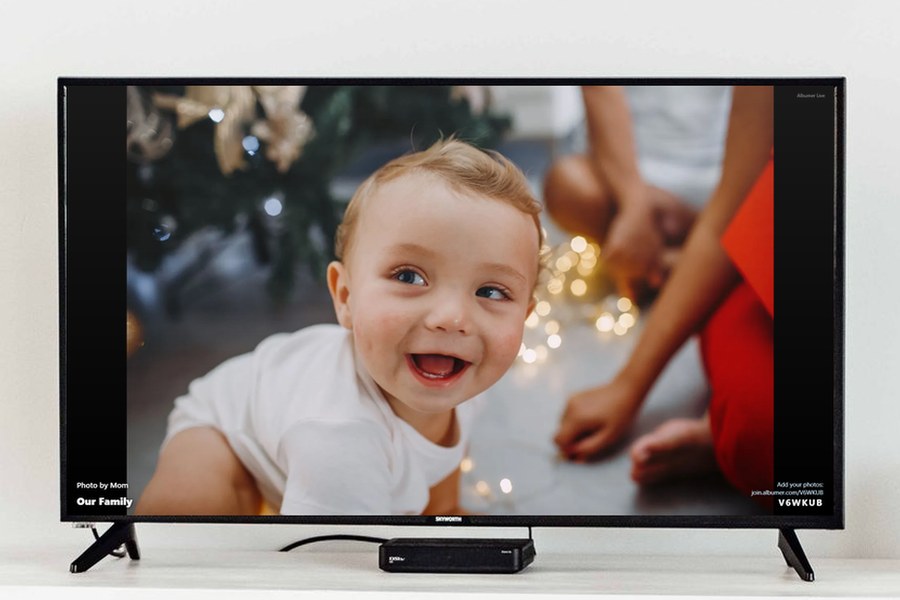
On your TV, open the web browser and go to join.albumer.com/tv. It shows a six-character code. In Albumer, tap Cast to TV, type the code, and pick an album or folder. The slideshow updates on its own as people add photos, and new ones jump to the front. Your phone isn't streaming anything, so put it away. To end it, tap Stop on the Cast to TV screen, or just close it on the TV.
Stick it on a big screen and watch how many more photos people suddenly upload once they can see their own face on the TV.
The Voice Guestbook
Open the album and tap the microphone button, tap Record a voice note, let it use the microphone, say your piece, then Stop & save. Tap any note to play it back.
It's the guest book nobody ever reads, except this one people actually listen to.
One thing to know: guests need the free app. There's no adding photos or recording messages from a web browser. The join page sends everyone to install it.
Contacts
Tap Contacts on Home. Your phone contacts and your Albumer people are in one list, with Guest lists and Requests at the top. Anyone already on Albumer is in the On Albumer section; everyone else is under Everyone else. If Albumer can't see your contacts yet, tap Allow on the banner.
A contact doesn't have to be an Albumer user at all. Grandma can be nothing but an email address pointed at her photo frame, and she never needs to know an app was involved. Tap the photo circle to give someone a picture, and fill in first name, last name, email, phone, and a note.
If two contacts look like the same person, a banner shows up at the top of the list. Tap it, see them side by side, and pick Merge or Not the same.
Notifications
You'll get one when someone shares an album with you, adds photos to an album you're in, comments on or likes your album, or joins your album.
Notifications are on the bottom bar. Press and hold one to start selecting, tap more, then delete. Clear all empties the lot.
Profile → Notification Settings has switches for Push notifications, New photos in your albums, and Album shares. And if one album is going off like a fire alarm, press and hold it and choose Mute notifications. It won't know.
Photo frames
Albumer will email every new photo in an album straight to an Aura, a Skylight, or whatever frame Grandma has on the shelf.
- Find the frame's email address in its own app.
- In Albumer, open the album and tap the frame icon at the top (or use the Frames tile on Home).
- Tap Add frame and paste the address in.
- Every photo added from then on turns up on the frame by itself.
Set it up once at Christmas and she gets new pictures of the grandkids all year without anybody lifting a finger.
Getting everything back out
Open the album, choose Save album to phone, confirm with Save all, let it into your photos, and the entire album lands in your camera roll.
Owners, members, invited people, everyone. There's no lock-in here and there never will be. It's your stuff.
Worth knowing: this is an app thing. The website can't do bulk saves.
The home screen widget
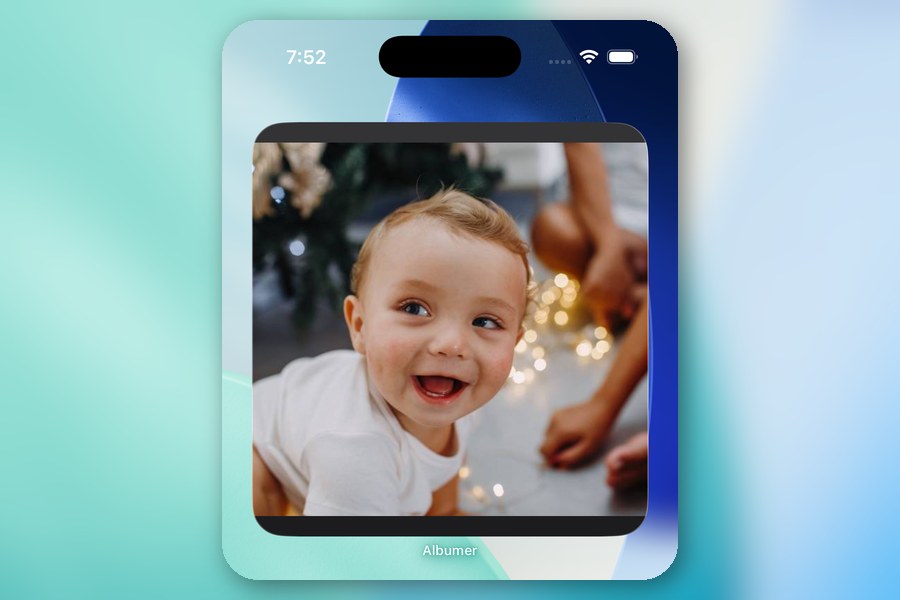
Put an album on your phone's home screen. On iPhone, hold an empty spot, tap Edit, then Add Widget, and find Albumer. On Android, hold an empty spot, tap Widgets, and drag Albumer on.
Then tap the widget and pick an album or folder. It shows a new photo about every 30 minutes. To choose exactly which photos show, press and hold a photo, tap Show in my widget, and point the widget at My widget picks.
Prints at Walgreens
Press and hold a photo and tap Print to Walgreens, or select a bunch and tap Print. Pick a Walgreens near you, pay on Walgreens' own page, and pick them up the same day. Albumer tells you when they're ready.
Games
Tap Games on Home. Send a photo as a puzzle, play a memory game, Photo Tic-Tac-Toe, Color Dash, or Albumer Hunt, a photo scavenger hunt with ready-made lists for parties, weddings, road trips, Halloween and more.
Journal
Every album and folder has a Journal. Tap it, add an entry, and write down what was happening when the photos were taken.
Your account
Your profile
Profile → My Profile is where you set a picture and edit your first name, last name, phone and email. Profile → Appearance changes the app's colors.
The Profile tab also shows how much storage you're using and how many albums and folders you've got.
Albumer Premium
Premium takes you from 5 GB to 50 GB, swaps 3-minute clips for full-length video, gets rid of the ads, and offers an add-on if 50 GB somehow isn't enough for you.
- Go to Profile → Subscription.
- Pick monthly or yearly.
- Confirm it through the App Store or Play Store.
- Already paid on another phone? Hit Restore purchases.
Two things people get caught by. Canceling happens in the store, not in Albumer. And deleting your Albumer account does not cancel your subscription. Cancel first, then delete, in that order.
Album Admins
Running a big album on your own is a lot. Hand some of it over.
- Open an album you own.
- Tap a member.
- Choose Make Admin and confirm.
- Changed your mind? Tap them again, Remove Admin.
Admins can invite and remove members, make and arrange folders, set the cover and open the QR code. They can't make anyone else an Admin, so only you hand out the badge.
Reporting and blocking
Press and hold any photo you didn't post and choose Report this photo, or tap the flag next to a comment.
Pick a reason, add detail if you want, and there's a switch for Also block this person while you're there. Send it.
Blocking wipes their photos and comments out of your view immediately and stops them sharing anything with you again. They're not told, and they can't tell. You can undo it whenever you like in Profile → Blocked People.
Deleting your account
We'd rather you didn't, but it's your account.
Profile → Delete My Account shows you exactly what's about to disappear. You can tell us why you're off, if you want. Then type DELETE, confirm, and that's that.
Two things survive: albums other people shared with you aren't deleted, you just lose access, and photos you added to somebody else's album stay in their album.
If you've already deleted the app and can't get at that screen, the same thing lives at albumer.com/account-deletion.
Language and the odds and ends
Profile → Language flips the app between English and Spanish. That's our text only, your album names and your comments are never touched, because nobody wants a robot rewriting what they called their dog.
Archived Albums brings back anything you filed away. Blocked People lists everyone you've blocked, with an Unblock button next to each one.
That's the lot. Go make an album.