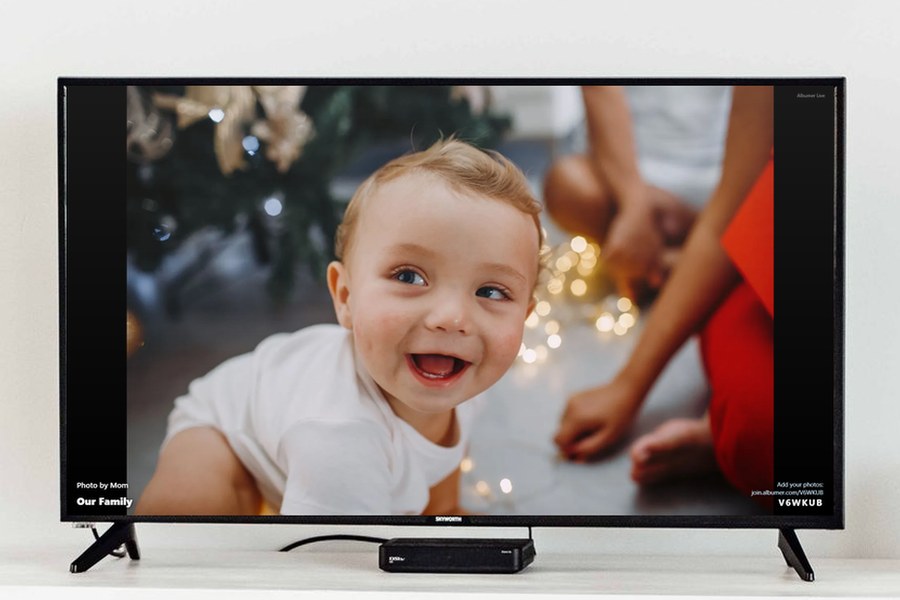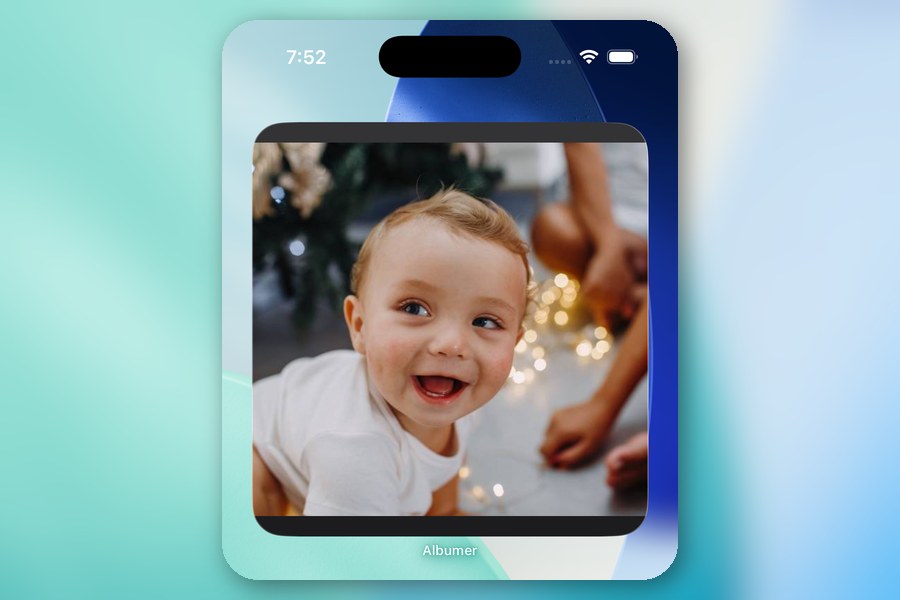
You didn't take six photos at the wedding. You took four hundred and eleven, including nine of the same centerpiece. Albumer is built for that.
Putting them in
- Open an album, or a folder inside one.
- Tap Add photos & videos, or the floating +.
- Let it see your photos when it asks.
- Select as many as you like.
- Confirm, and watch the counter climb.
On iPhone there's no limit, pick the lot. On Android the picker stops you at 100 at a time. That's Google's rule and there's nothing we can do about it, so just pick again for the next hundred.
Things that happen without you asking
- The first photo in a new album becomes the cover.
- Duplicates get spotted and you get asked what to do.
- The screen stays awake, so your phone doesn't fall asleep at photo 80 of 400.
- If the app closes, the rest carry on next time you open it.
When it falls over
It used to lose everything after the point it died. It doesn't now.
The whole batch is written down before it starts. So if the app crashes, or you swipe it away by accident, or your phone runs out of battery in a taxi, just open Albumer again. The rest go up, and you get an Uploads finished message telling you how many. If one file keeps failing it gets skipped rather than blocking everything behind it, and there's a Stop button if you've changed your mind.
While that's happening, a few things sort themselves out. The first photo in a new album becomes the cover. Duplicates get spotted and you get asked about them. Uploads keep going if you switch apps or lock your phone: iPhone hands them to the system, and Android shows an "Uploading" notification while it works. If the app is fully closed, the rest carry on next time you open it.
The nine centerpiece photos
Add something already in the album and a review sheet appears.
- Every duplicate is listed with your new photo right next to the one already in there.
- Toggle each row: skip it, or add it anyway.
- Or hit Skip all or Add all anyway and get on with your evening.
- Confirm. Only what you picked goes up.
Nothing already in the album gets touched, overwritten or deleted. Ever. Worst case you end up with two of something.
How much fits
Free accounts get 5 GB and 3-minute video clips. Premium gets 50 GB and video as long as you like. Either way one video tops out at 5 GB.
If a video is too long for a free account, you get told plainly, and told which ones were skipped. No silent disappearing.
About quality, because this is the bit that matters
Original is the default and always will be: full resolution, never cropped, maximum quality.
Space Saver also keeps the full resolution and still never crops. It just makes a smaller file so more of it fits.
A normal iPhone photo is 5 to 8 MB on Original, or 2 to 3 MB on Space Saver. In the free 5 GB that's roughly 700 to 1,000 photos against 1,700 to 2,500. Change it in Profile → Photo Quality, and it only affects what you add afterwards. Everything already up there stays exactly as it is.
Here's why we bang on about it. Apple's Shared Albums cut your photos to 2048 pixels and your video to 720p. Google Photos' Storage Saver resizes anything over 16 megapixels. They don't make a fuss about it, because smaller photos are cheaper for them to keep. You took a 48-megapixel photo and got a postcard back.
We don't do that.
Getting it all back out
Open the album, choose Save album to phone, confirm with Save all, and every photo and video lands in your camera roll.
Owners, members, people who were invited last week, everyone. It's your stuff and you can take it whenever you want. Just do it from the app, because the website can't do bulk saves.